Practical guide
A practical guide to sadtalker ai workflows
sadtalker ai is easiest to understand as a portrait-animation workflow: prepare a suitable face image, provide speech or driving input, review the result, and refine the source when motion breaks down.
How it works
One full run-through
A reliable run is less about pressing one button and more about preparing inputs that give the model room to preserve identity and express motion.
-
1
Prepare the portrait
Use a clear, front-facing image with the main face visible and enough space around the head. Even lighting, a readable mouth, and a non-obstructed jaw make later motion easier to inspect.
-
2
Add the driving input
Choose the speech, audio, or motion source that should guide the portrait. Keep the opening test short so you can judge lip movement, blinking, head pose, and timing before committing to a longer clip.
-
3
Review and refine
Watch for mouth shapes that drift, expressions that feel rigid, or movement that changes the person's identity. Improve the portrait or driving input, then render another focused test instead of hiding every flaw with editing.
Related routes
These nearby guides cover the practical decisions that usually come before or after an AI portrait-animation test.
Decision guide
Options table
The right choice depends on how much control you need over preparation, testing, and cleanup rather than on the label attached to the tool.
Local project setup
Guided AI workflow
Input preparation
Local project setup
You select, crop, and inspect the portrait and driving material yourself.
Guided AI workflow
You still need suitable inputs, but the surrounding workflow may reduce setup decisions.
Technical control
Local project setup
More room to inspect settings, dependencies, and intermediate behavior.
Guided AI workflow
More emphasis on a focused path from uploaded inputs to generated output.
Iteration style
Local project setup
Useful for repeated experiments when you want to change one variable at a time.
Guided AI workflow
Useful for quickly testing a concept before deciding whether deeper control is necessary.
Hardware responsibility
Local project setup
Your computer or runtime must support the chosen installation and model process.
Guided AI workflow
The execution environment is handled outside your own local setup, subject to the selected service.
Best first test
Local project setup
A short clip with a centered portrait and clearly audible speech.
Guided AI workflow
The same conservative test, because better input quality still matters more than a polished interface.
Typical trade-off
Local project setup
Greater setup effort can come with greater visibility into the process.
Guided AI workflow
Less setup can mean fewer low-level controls or less visibility into how a result was produced.
Reality check
What fails
Portrait animation is sensitive to source quality and motion demands. Knowing the failure modes helps you diagnose the input instead of blaming the final render.
-
Extreme head turns
Large rotations can expose missing facial information and cause the face to warp or lose identity.
WorkaroundBegin with modest motion and use a portrait that shows the face clearly from a near-frontal angle.
-
Obstructed mouths
Hands, microphones, heavy shadows, masks, or cropped lips make speech-driven movement harder to read.
WorkaroundChoose a clean source image or prepare a less obstructed crop before testing.
-
Long first attempts
A long clip can conceal where timing or expression begins to drift, making refinement slower.
WorkaroundTest a short, representative segment first and expand only after the motion looks consistent.
-
Unnatural expression changes
A technically aligned mouth does not guarantee convincing emotion, eye motion, or head movement.
WorkaroundUse restrained driving material, inspect the eyes and jaw separately, and treat the first render as a diagnostic.
Visual check
From still portrait to talking output
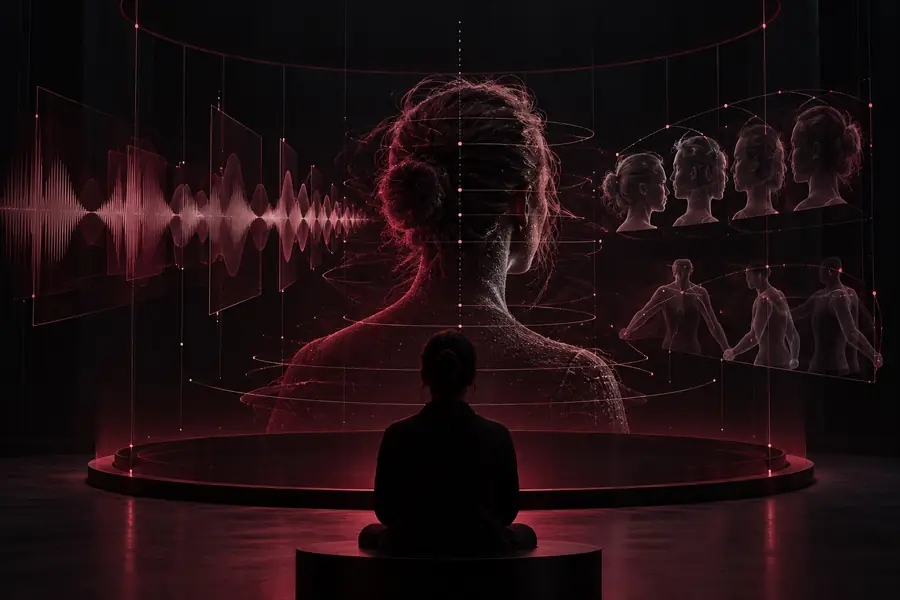
The useful comparison is not only whether the mouth moves, but whether the generated motion preserves the person's recognizable features.
- Before: source portrait
- After: talking output
Compare identity, mouth timing, eyes, and head motion together.
Next step
Test a focused portrait workflow
Bring a clear source image and a short driving sample to the next stage. Start with a small, reviewable test so you can judge the result on identity, timing, and expression before expanding the project.
Start a portrait test- Use a clear, front-facing source
- Begin with a short driving sample
- Review motion before polishing the clip
Common questions
FAQ
It is used to animate a still portrait so the face appears to speak or move in response to a driving input. The quality of the result depends heavily on the portrait, audio or motion source, and the amount of movement requested.
The name can refer to an AI-assisted portrait-animation workflow rather than one single delivery method. A local setup gives you more responsibility for installation and runtime, while a guided online route may simplify the path from inputs to a result.
No image should be treated as guaranteed to work equally well. Clear, sufficiently large, front-facing portraits with visible facial features are generally easier to evaluate than heavily cropped, shadowed, or obstructed images.
Unnatural results can come from difficult head movement, unclear mouth details, weak audio alignment, or a source image that does not contain enough facial information. Try a shorter test, reduce the motion demands, and improve the portrait before changing several variables at once.
No. It can provide an animated talking-portrait result, but editing may still be needed for trimming, sound cleanup, pacing, captions, or compositing. Treat the generated clip as one production element rather than a complete finished video.